IBM & Red Hat on AWS
Implement Conversational Observability with IBM Instana MCP Server and Kiro
Modern observability tools generate substantial data about application performance, infrastructure health, and system behavior. However, accessing this data typically requires navigating dashboards, constructing API queries, or switching between multiple tools. IBM Instana Observability (Instana) MCP server provides conversational AI interactions that transform observability workflows into natural language conversations.
The Model Context Protocol (MCP) is an open-source standard that enables connecting AI agents with external tools and data sources via standardized interfaces. By integrating the Instana MCP server with Kiro CLI and Kiro IDE, development teams can query observability data, troubleshoot issues, and manage alerts directly from their terminal using natural language.
In this blog, you’ll learn how to get started and configure the Instana MCP server to work with Kiro CLI and IDE by subscribing to Instana’s free MCP Server listing on AWS Marketplace. You will also learn about the architecture and implementation steps required to establish AI-powered observability for your applications and infrastructure.
Instana MCP Server
The Instana MCP server is built as a unified layer that exposes Instana’s full REST API capabilities through MCP. It translates conversational queries into precise API calls and formats responses for AI assistants. This approach makes enterprise-grade observability accessible through questions, reducing the need to memorize API endpoints or construct requests.
As an open-source project on GitHub, the Instana MCP server encourages community contributions and customizations. Teams can extend functionality, add custom tools, and adapt the server to their organizational needs.
The Instana MCP Server offers specialized tools that provide access to Instana’s API endpoints for metrics retrieval, resource discovery, alert management, infrastructure analysis, and event monitoring. These tools are organized into logical categories and can be selectively enabled, combined, or filtered based on your use case:
- Application Performance Monitoring: Access real-time and historical performance data for applications, endpoints, services, and traces
- Infrastructure Monitoring: Monitor hosts, analyze snapshots, manage software inventory, and explore infrastructure topology
- Alert Configuration: Manage the complete lifecycle of Application smart alert configurations, including creation, updates, and baseline management
- Infrastructure Catalog: Explore available metrics, plugins, and monitoring capabilities across your stack
The MCP interface supports query options including time ranges, tags, entity identifiers, metric thresholds, and environment scopes, allowing AI assistants and developer tools to retrieve the data they need from Instana in real time.
Instana MCP Server Architecture Overview
The following diagram (Figure 1) shows how the Instana MCP server integrates with Kiro and Instana, illustrating the data flow from client interfaces through the MCP server to the Instana backend.
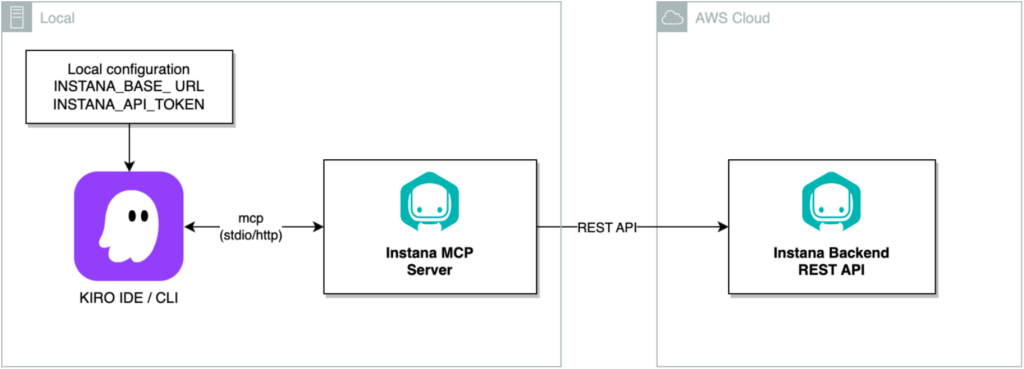
Figure 1. Reference architecture showing Instana MCP server integration with Kiro CLI, Kiro IDE, and Instana Backend.
The architecture consists of these main components:
- Kiro CLI / Kiro IDE: Serve as conversational interfaces where users issue natural-language queries, with both clients communicate through the MCP standard to request data from Instana
- Instana MCP Server: Acts as the translation layer that converts conversational queries from Kiro into Instana REST API calls and formats responses for AI consumption, receiving requests via MCP protocol and retrieving observability data from the Instana Backend
- Transport Layer: Supports both stdio (standard input/output) and HTTP transport modes for compatibility in different deployment scenarios
- Instana Backend: Serves as the central storage and analytics system for your observability data, available as a fully managed SaaS on AWS or Self-Hosted deployment in your own AWS account
Using Instana MCP Server with Kiro
With the Instana MCP server and Kiro, you can:
- Query application performance metrics using natural language instead of constructing REST API calls.
- Investigate infrastructure issues directly from your terminal without switching contexts.
- Access distributed traces, logs, and metrics through conversational interactions.
- Manage alert configurations and analyze system behavior through queries.
- Accelerate troubleshooting by asking questions about alerts and events.
- Interact via Kiro CLI in the terminal or Kiro IDE, both using the same Instana MCP Server backend.
Implementation walkthrough
This section walks you through subscribing to the Instana MCP Server on AWS Marketplace, installing and configuring the server locally using Docker, and integrating it with Kiro CLI and Kiro IDE for conversational observability interactions.
Prerequisites
Before you begin, ensure you have the following:
- An AWS account with credentials configured
- An active subscription to IBM Instana Observability. You can start with an Instana free trial from AWS Marketplace
- AWS Identity and Access Management (IAM) permissions for Amazon Elastic Container Registry (Amazon ECR) operations
- An Instana API token, generated from your Instana tenant dashboard after signing in
- Access to your Instana tenant URL (for example, https://your-instance.instana.io)
- Basic familiarity with Instana’s REST APIs
The following tools installed and configured on your workstation:
- AWS Command Line Interface (AWS CLI) version 2
- Kiro CLI and Kiro IDE installed and configured on your workstation
- Python 3.10 or later and Docker
Cost Considerations
The IBM Instana Observability MCP Server container image has no contract cost. You will incur costs for your Instana Observability SaaS subscription, based on the plan you select on AWS Marketplace after the free trial period ends.
If you deploy the MCP Server to AWS compute services such as Amazon Elastic Compute Cloud (Amazon EC2), Amazon Elastic Kubernetes Service (Amazon EKS) or Amazon Elastic Container Service (Amazon ECS), standard AWS service charges apply. Kiro pricing depends on usage. For current pricing information, see Kiro Pricing.
This walkthrough demonstrates local deployment using Docker on your workstation, which does not incur AWS compute costs.
Deployment options
This walkthrough demonstrates local deployment of the Instana MCP Server using Docker on your workstation. This approach is designed for development and individual use. You can also deploy the MCP Server container on Amazon ECS, Amazon EKS, or Amazon EC2 for team use or production scenarios.
When deploying on AWS, consider these security practices. Use AWS Secrets Manager or AWS Systems Manager Parameter Store to store and retrieve Instana API tokens instead of environment variables. Enable encryption at rest using AWS Key Management Service (AWS KMS) customer managed keys for secrets stored in Secrets Manager or Parameter Store. Rotate API tokens regularly according to your organization’s security policies. Configure Amazon Virtual Private Cloud (Amazon VPC) security groups to restrict network access to the MCP Server endpoint based on source IP addresses or security group IDs.
Use AWS Identity and Access Management (IAM) roles for task execution to grant the container only the permissions it needs to access AWS services. Enable encryption in transit by configuring TLS/SSL certificates for the MCP Server HTTP endpoint. Use Amazon CloudWatch Logs to capture and analyze MCP Server access logs and application logs for security monitoring and troubleshooting.
Subscribe to Instana Observability MCP Server on AWS Marketplace
Before you can use the Instana MCP Server, you must subscribe to it on AWS Marketplace.
- Navigate to the Instana Observability MCP Server listing on the AWS Marketplace and choose View Purchase Options.
- On the Subscribe to IBM Instana Observability MCP Server page, review the pricing information and product terms, and choose Subscribe.
- After your subscription request completes, choose Launch your software to access the deployment instructions. The following image shows the commands to authenticate to Amazon ECR, pull the Instana MCP Server image, and run the container (Figure 2).
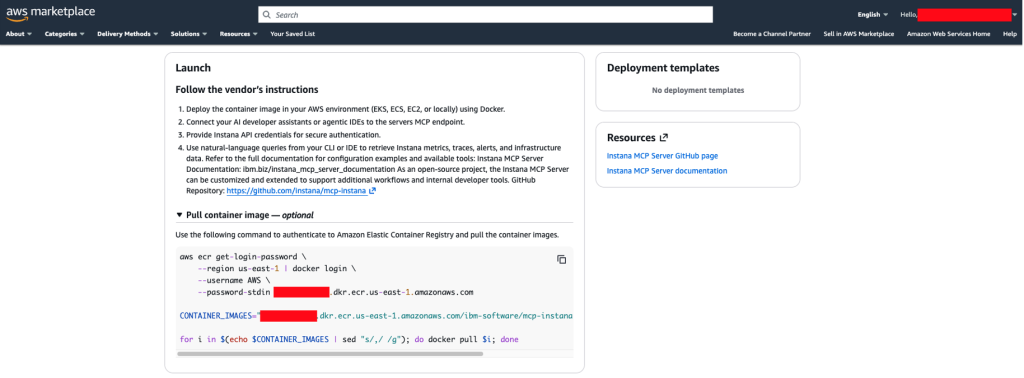
Figure 2. Instana MCP deployment instructions from AWS Marketplace.
Note the Amazon ECR repository URL and image tag from these instructions. You will use them in the next step to deploy the Instana MCP Server.
Install Instana MCP Server
After subscribing, install the MCP Server locally using Docker.
- Run the following commands from your workstation to download and launch the Instana MCP server using the details obtained in step 3:
$ aws ecr get-login-password --region us-east-1 | docker login --username AWS --password-stdin <<aws-marketplace-repo>>.dkr.ecr.us-east-1.amazonaws.com

$ docker pull <<aws-marketplace-repo>>.dkr.ecr.us-east-1.amazonaws.com/ibm-software/mcp-instana-server:v0.3.1

$ docker run -d -p 8080:8080 --name mcp-instana <<aws-marketplace-repo>>.dkr.ecr.us-east-1.amazonaws.com/ibm-software/mcp-instana-server:v0.3.1- To verify the server is running, run:
$ docker psThe output displays the container ID, image name, creation time, status, and port mappings for the running Instana MCP server container (Figure 3):

Figure 3. Docker container status output for Instana MCP Server.
This walkthrough uses streamable HTTP mode for connecting to the Instana MCP server which:
- Uses HTTP headers for authentication (no environment variables needed)
- Supports different credentials per request
- Better suited for shared environments
- Default port: 8080
- Endpoint: http://0.0.0.0:8080/mcp/
The Instana MCP Server also supports stdio mode, which enables direct communication over standard input/output. In stdio mode uses environment variables for authentication and is designed for MCP clients that require stdin/stdout transport. For stdio configuration steps, see the Instana MCP Server GitHub repository
Using Instana MCP server with Kiro IDE
After deploying the Instana MCP server, configure it in Kiro IDE.
- Launch the Kiro IDE application. If this is your first time using Kiro, you will be prompted to sign in and complete the initial setup.
- From the Getting started page, choose Open a project to select your project directory. This will be the workspace where you’ll use Instana via MCP.
- Choose the Kiro icon in the activity sidebar to open the Kiro settings panel.
- In the MCP SERVERS section, choose Enable MCP (if this is your first time configuring MCP) or choose the pencil icon to open the MCP configuration. The following image shows the Kiro settings panel with the MCP SERVERS section (Figure 4).
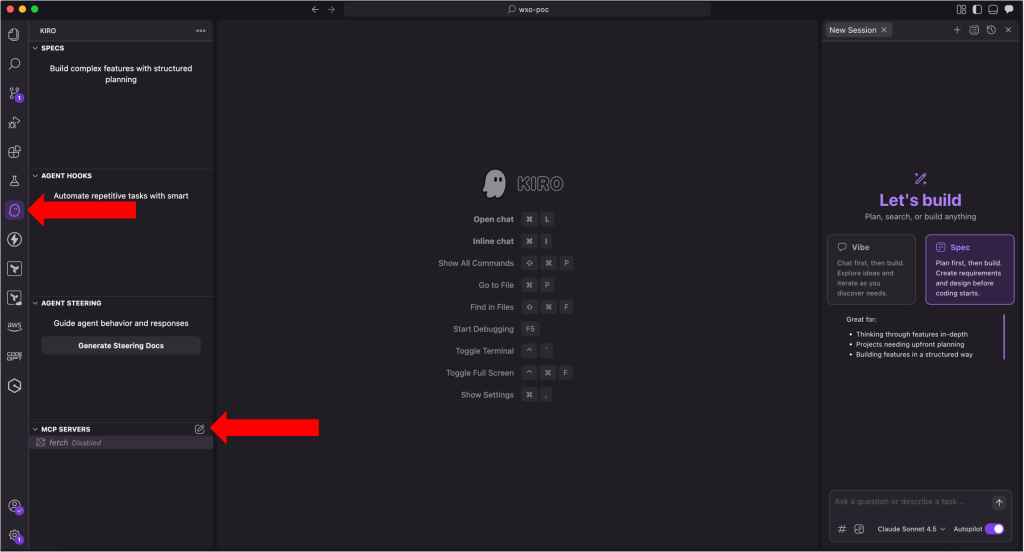
Figure 4. Kiro settings panel showing MCP server configuration options.
- Define your Instana MCP server by adding and saving the following entry in the mcp.json configuration file:
{
 "mcpServers": {
    "instana-mcp-server": {
      "url": "http://<replace-with-your-instana-mcp-host>:8080/mcp",
      "headers": {
        "INSTANA-BASE-URL":"https://<replace-with-your-instana-tenant>.instana.io",
        "INSTANA-API-TOKEN":"<replace-with-your-instana-api-token>"
      },
      "disabled": false
    }
  }
}- After saving the configuration, the MCP server and its available tools appear under MCP SERVERS with a Connected status. The following image shows the successfully connected Instana MCP server in Kiro (Figure 5).
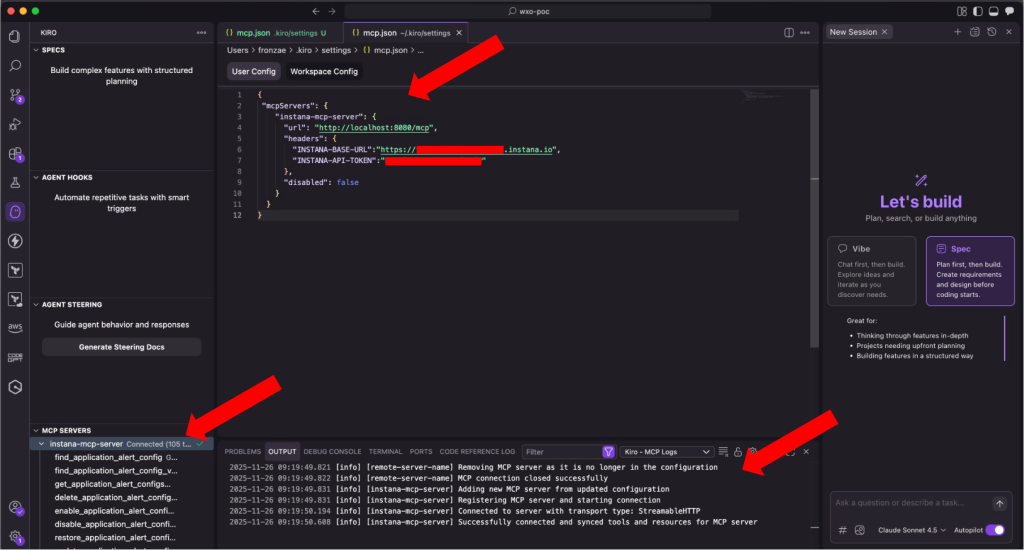
Figure 5. Connected Instana MCP server displayed in Kiro IDE.
- From the Kiro chat panel, you can ask questions such as: Get the list of Instana applications from the Instana MCP server. Kiro uses the available MCP tools to retrieve information about the applications monitored in your environment. The following image shows the response in the Kiro chat panel (Figure 6).
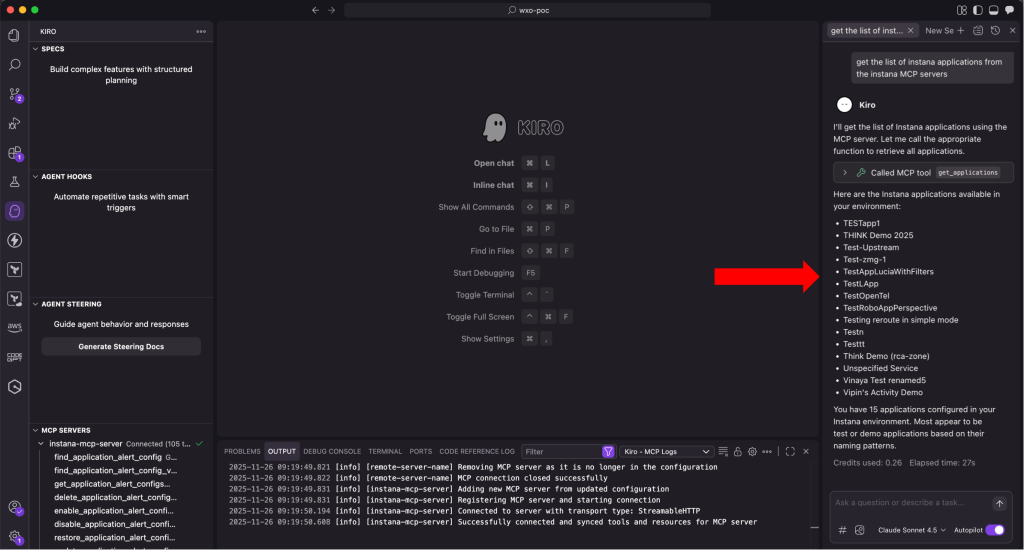
Figure 6. Kiro chat panel displaying retrieved Instana application list.
Configuring Kiro CLI Integration
After deploying the Instana MCP server, configure it in Kiro CLI.
- Refer to the Kiro documentation and run the following command to create a custom agent:
$ kiro-cli agent create --name instana- The command creates the ~/.kiro/agents/instana.json file and prompts you to configure your agent. Use the following JSON example below to configure the instana agent:
{
  "name": "instana",
  "description": "Instana MCP Server for monitoring and observability via Kiro CLI",
  "prompt": "You are an assistant that interacts with the Instana MCP server to fetch monitoring and observability data.",
  "mcpServers": {
    "instana-mcp": {
      "type": "http",
      "url": "http://<replace-with-your-mcp-host>:8080/mcp",
      "timeout": 120000,
      "disabled": false,
      "headers":{
          "INSTANA-BASE-URL":"https://<replace-with-your-instana-tenant>.instana.io",
          "INSTANA-API-TOKEN":"<replace-with-your-api-token>"
      }
    }
  },
  "tools": ["*"]
}- After saving the configuration, start a new chat session with your custom Instana agent:
$ kiro-cli --agent instana- Ask questions such as: List 3 applications in Instana. Kiro CLI uses the Instana MCP server to retrieve the information. The following image shows the Kiro CLI response with application data (Figure 7):
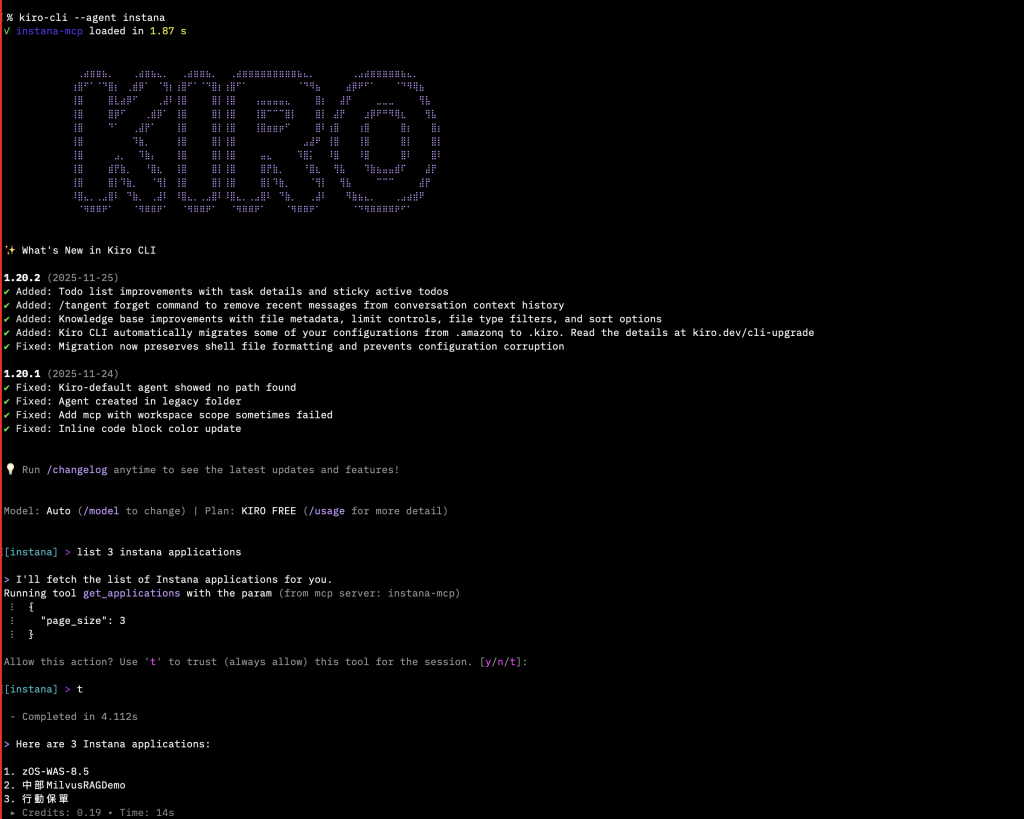
Figure 7. Kiro CLI displaying Instana applications retrieved via MCP server.
Monitoring AWS services with the Instana MCP server
With the Instana MCP server configured, you can monitor AWS services such as Amazon EC2, and Amazon EKS by asking questions in natural language.
- Prompt your Instana custom agent with the instruction: List of available tool categories. This retrieves the list of available tool categories for monitoring and observability data. The following image shows the Kiro CLI output with the available Instana tool categories (Figure 8):
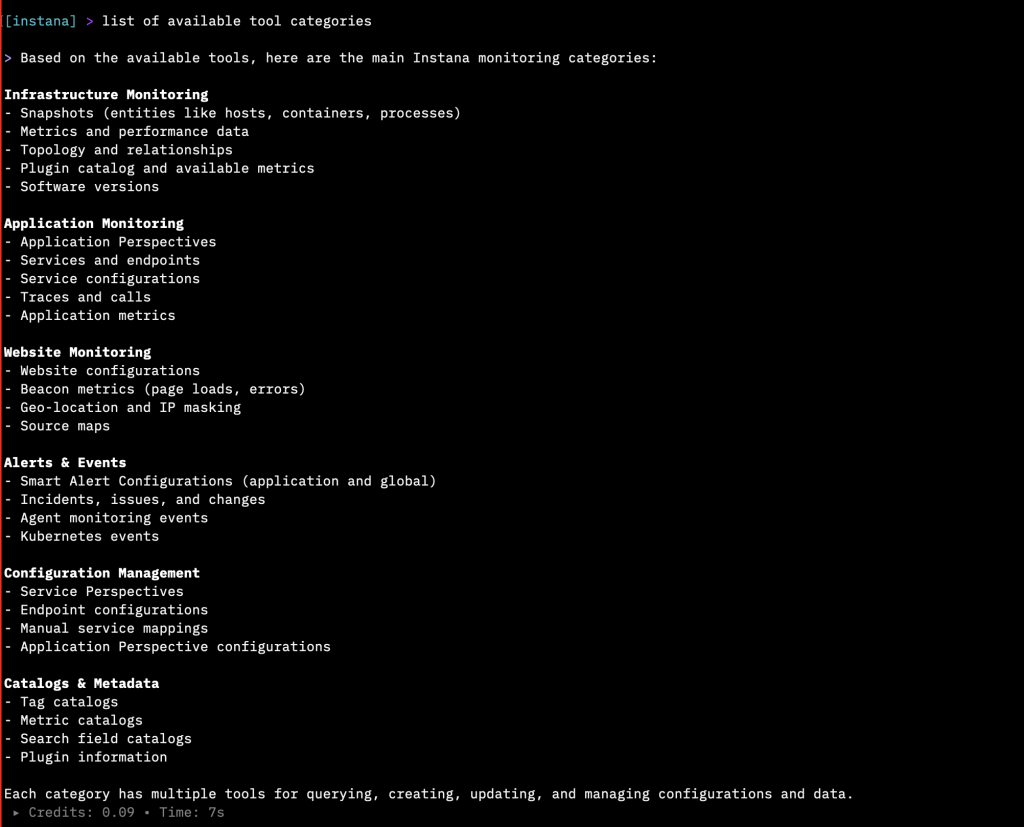
Figure 8. Available Instana tool categories displayed in Kiro CLI.
- Next, prompt the agent with the instruction: Show me 3 applications with health status. Kiro uses the get_applications MCP tool to retrieve a snapshot of application health directly from Instana. The following image shows the application health data in Kiro CLI (Figure 9):
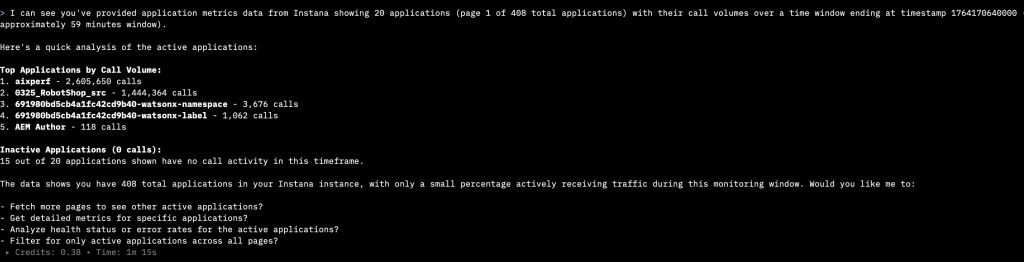
Figure 9. Application health status retrieved from Instana displayed in Kiro CLI.
The output shows the health status of three Instana applications, highlighting inactive services with no recent traffic or metrics. Instana determines application health based on call volume and latency data.
- Use the following prompt to correlate applications with Amazon EC2 instances: Give me all applications that have at least one Amazon EC2 instance associated with them. Kiro queries Instana APIs to map EC2-tagged resources to applications and returns a filtered list to help you identify Amazon EC2 dependent workloads. The following image shows the results in Kiro CLI (Figure 10):
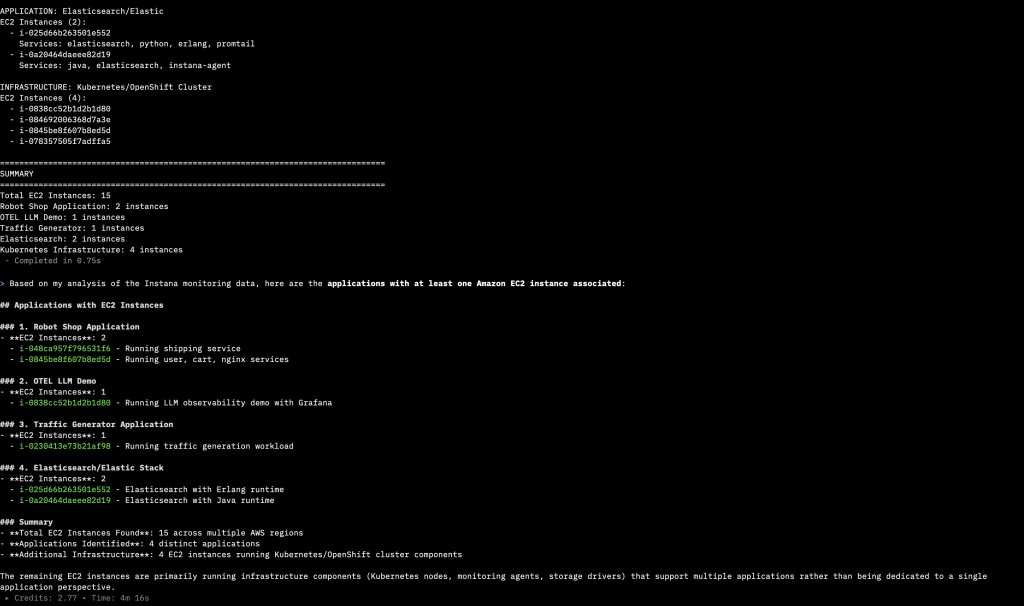
Figure 10. Instana applications correlated with Amazon EC2 instances in Kiro CLI.
- You can also review recent Kubernetes events with the prompt: Get Kubernetes events for the last 3 hours. This calls the get_kubernetes_info_events tool to summarize events such as failed container starts, resource constraints, and policy violations. The following image shows the Kubernetes event summary in Kiro CLI (Figure 11):
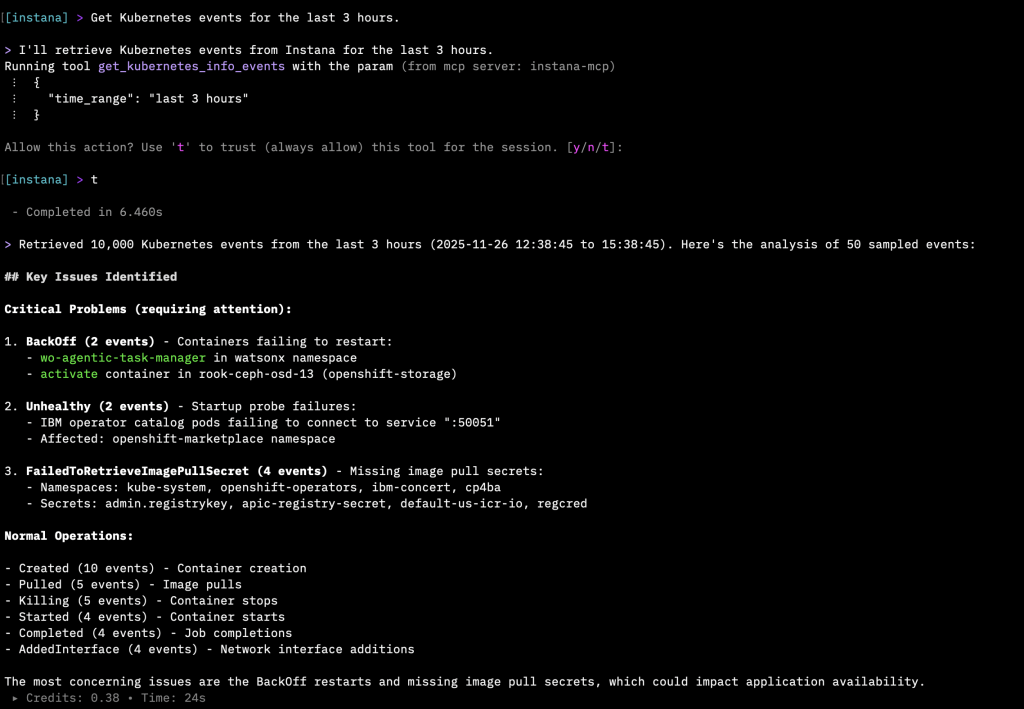
Figure 11. Kubernetes events from the last three hours displayed in Kiro CLI.
Additional query examples
The following examples demonstrate additional queries you can use with Kiro to retrieve insights from Instana using the MCP server:
Application Performance Analysis:
- Show me the top 5 slowest endpoints in the last hour
- What applications have error rates above 5%?
- Get metrics for the checkout service in production
- Show services with the highest error rate in the last 30 minutes.
Infrastructure Monitoring:
- Show me all hosts in the production environment
- What Amazon EKS pods are consuming the most memory?
- List all infrastructure snapshots from the last 24 hours
Alert Management:
- Show me all active alerts for the payment service
- List all active alerts in the production environment.
- What alert configurations do we have for high CPU usage?
- Create a new alert for response time exceeding 500ms
System Investigation:
- What changes were made to our Amazon EKS cluster today?
- Show me recent deployment events that might explain the latency spike
- What infrastructure plugins are available for monitoring databases?
Cleanup Instructions
After you complete your testing and validation, you can stop or remove the Instana MCP Server container to free up resources.
- Stop and remove the Instana MCP server container:
$ docker stop mcp-instana
$ docker rm mcp-instana- Open Kiro IDE and choose the Kiro icon in the activity sidebar to open the Kiro settings panel.
- In the MCP SERVERS section, locate the Instana MCP entry. Open the context (right-click) menu for the entry and choose Disable to disconnect Kiro from the Instana MCP server endpoint.
- Choose the pencil icon to open the MCP configuration and delete the Instana MCP server configuration you added in step 10 of the Implementation Walkthrough
- Remove the Kiro CLI custom Instana agent configuration file:
$ rm ~/.kiro/agents/instana.json- Revoke or rotate any temporary Instana API tokens used during setup to prevent unintended access to your Instana environment.
Summary
In this blog, you learned how the IBM Instana Observability MCP Server enables users to interact with observability data using AI-driven conversational workflows from Kiro CLI and Kiro IDE.
By combining Instana’s observability capabilities with Kiro, developers can query metrics, traces, and alerts conversationally without dashboards or manual API calls. They can automate performance investigations directly from the command line or IDE and correlate application health with AWS services such as Amazon EC2, Amazon EKS, and AWS Fargate in real time.
This integration eliminates context switching, simplifies troubleshooting, and makes observability a first-class part of the developer experience on AWS. It accelerates root cause analysis using intelligent, context-aware responses from the Instana MCP Server.
To get started, visit Instana Observability on AWS Marketplace and subscribe to a 14-day free trial of IBM Instana Observability SaaS on AWS.
Additional Content:
- Observe AI Agents on Amazon Bedrock AgentCore with IBM Instana
- Stream Amazon CloudWatch metrics to IBM Instana with Amazon Data Firehose
- Reducing Network Costs and Enhancing Observability Security with IBM Instana and AWS PrivateLink
- Implement observability for Amazon EKS workloads using the Instana Amazon EKS Add-on
- Monitor and Optimize Amazon EKS Costs with Instana and Kubecost
- Monitoring Amazon Bedrock Large Language Models with Instana
- Automate Observability for AWS with Instana self-hosted
- Realtime monitoring of microservices and cloud-native applications with Instana SaaS on AWS